
In this article
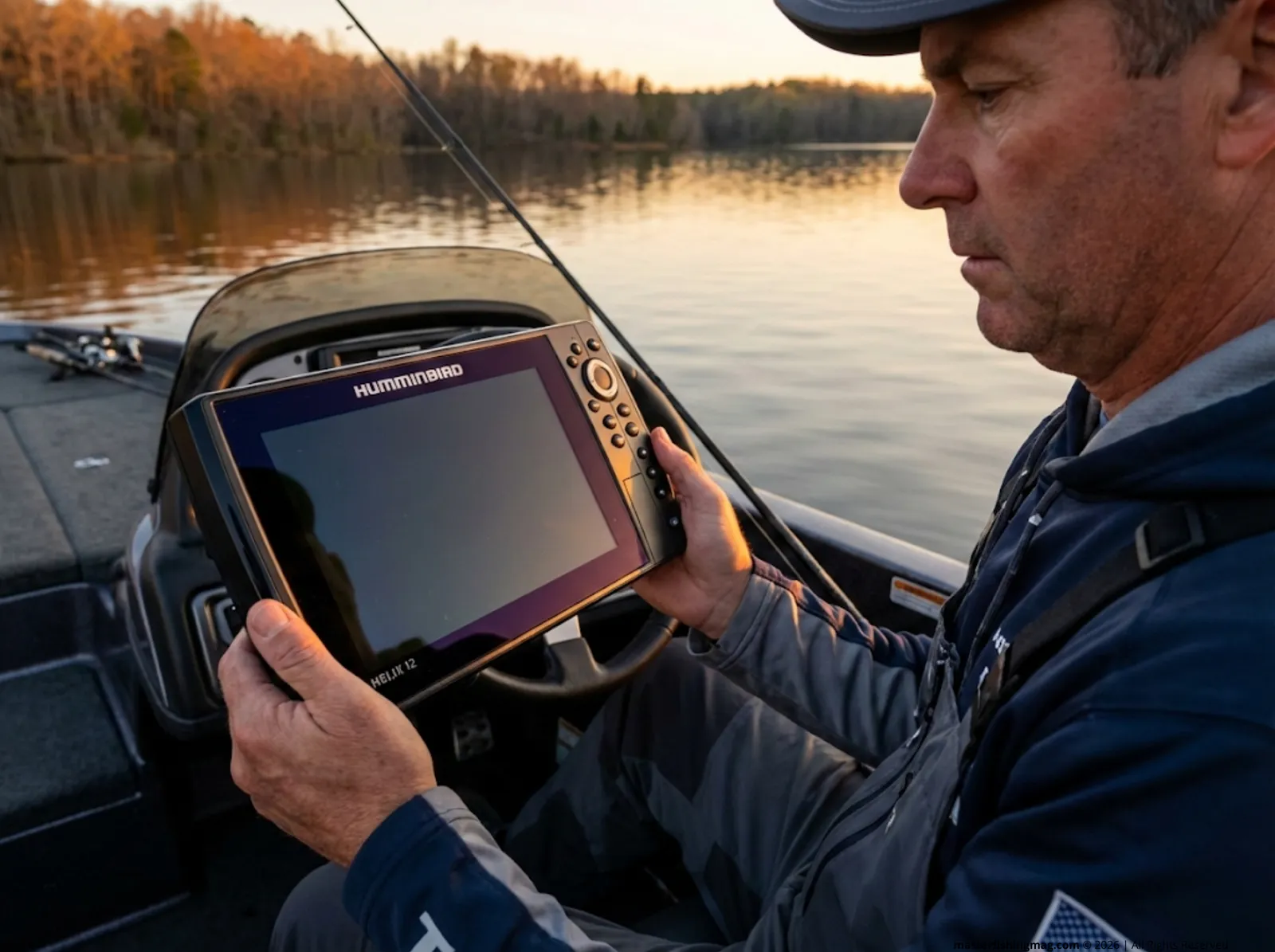
The Humminbird HELIX 12 powered on fine that Saturday morning. Screen bright. Sonar sweeping the bottom in clean arcs. But when I tapped over to the nav data folder, my stomach dropped. Empty. Every single waypoint I’d saved over six years — gone.
Brush piles on Lake Fork that took me three seasons to pin down. Channel ledges on Texoma where smallmouth stacked up in October like clockwork. More than a hundred crappie beds I’d triangulated season after season. All of it — years of accrued fishing knowledge — erased by a firmware update I figured was routine.
That dead screen taught me something no YouTube tutorial ever had. Your fish finder doesn’t back anything up for you. There’s no cloud. No automatic sync worth trusting. And once that internal memory clears — whether from an update, a device failure, or selling your unit — those waypoints are gone for good.
Here’s the full GPS waypoint backup strategy I rebuilt from zero after that loss. It covers Humminbird HELIX, Lowrance HDS, and Garmin ECHOMAP step by step, plus a long-term system for organizing and protecting your marks so you can prevent catastrophic loss of your most valuable fishing data.
⚡ Quick Answer: Export all your nav data (waypoints, routes, and tracks) to an unlocked FAT32-formatted SD card through your unit’s menu before every firmware update, every end-of-season, and ideally after every significant trip. Copy the file to your PC and name it by lake and date. Keep three copies in two locations. That’s the entire strategy — the rest of this article shows you exactly how to execute it on every major brand.
Why One Dead Unit Can Erase a Decade of Fishing Intel
Your Fish Finder Stores Everything in Volatile Memory
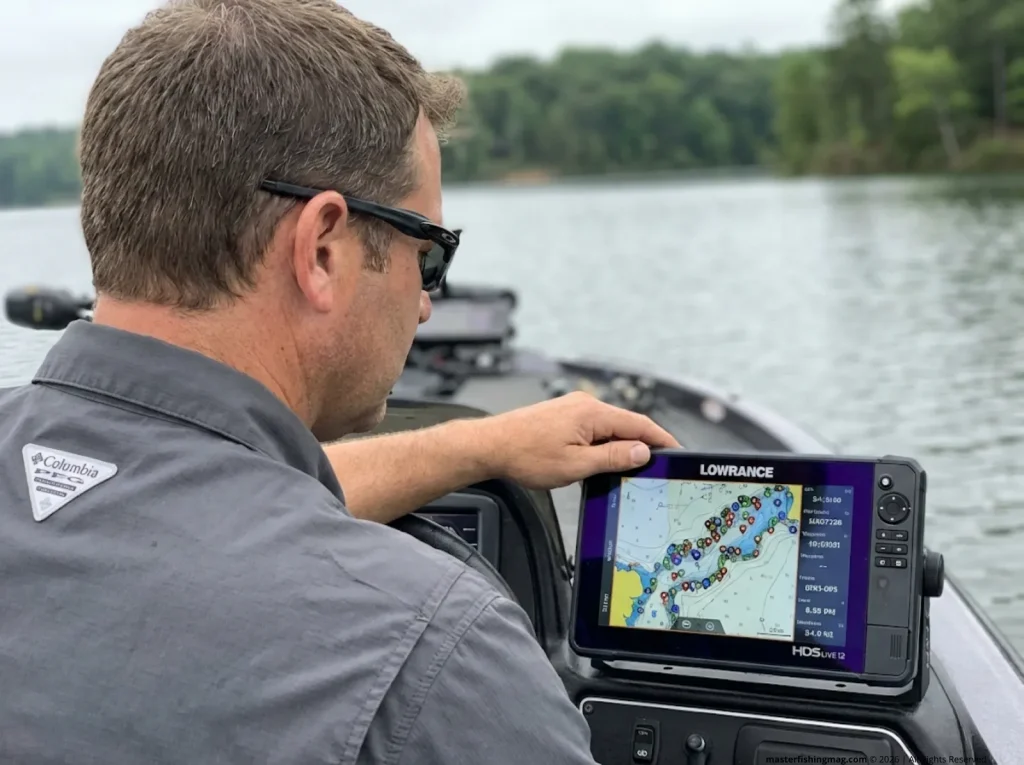
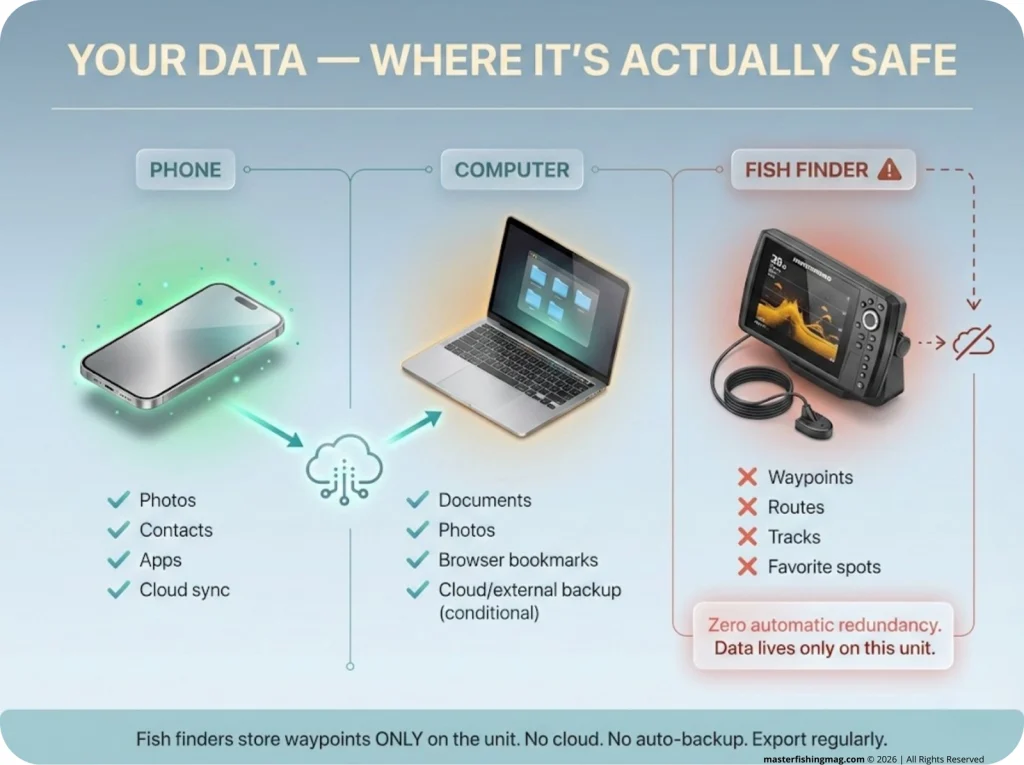
Every Humminbird, Lowrance, and Garmin unit on the market stores your waypoints, routes, and tracks in internal memory only. There’s no background sync running. No secondary drive saving a copy. When that unit loses power permanently, gets factory-reset, or takes a bad firmware update, every mark you’ve saved since day one disappears with it.
This isn’t a rare edge case. Forum threads and Facebook groups are full of anglers who lost 500 to 2,000 waypoints in a single afternoon. One guy on a New Zealand fishing forum summed it up perfectly: “He who makes a backup, laughs last.” The ones who didn’t? They’re starting over from scratch on water they’ve fished for a decade.
Unlike your phone — which backs up contacts, photos, and notes automatically — your chartplotter has zero recovery options once the internal memory clears. What’s gone is gone.
Pro tip: Treat your fish finder like an old desktop computer. If it doesn’t exist on a separate card or drive, it doesn’t exist at all.
The Performance Problem Nobody Warns You About
Here’s something most anglers never hear: too many saved waypoints actually slow your unit down. Humminbird HELIX models max out at 2,750 waypoints, 47 routes, and 50 tracks with no more than 20,000 total track points. Once you approach those limits, menu response drags and screen redraws start lagging — like running a computer with a full hard drive.
Backing up isn’t just insurance against data loss. It’s performance maintenance. Export your nav data, clear out the old marks you don’t need on the unit anymore, and the whole interface snaps back to life. Most anglers who complain their unit “got slow” after a couple of seasons have no idea that waypoint buildup is the problem.
The real value of fishing data goes far beyond what sits on one device — as the American Sportfishing Association emphasizes, data is the foundation of successful recreational fishing. Your waypoint library is no different.
If you’ve ever dealt with a unit that won’t display bottom readings at all, that’s a whole other problem — and one covered in our guide to troubleshooting your fish finder’s blank screen.
The Gear You Need Before You Touch a Single Menu
SD Card Rules That Trip Up Even Experienced Anglers
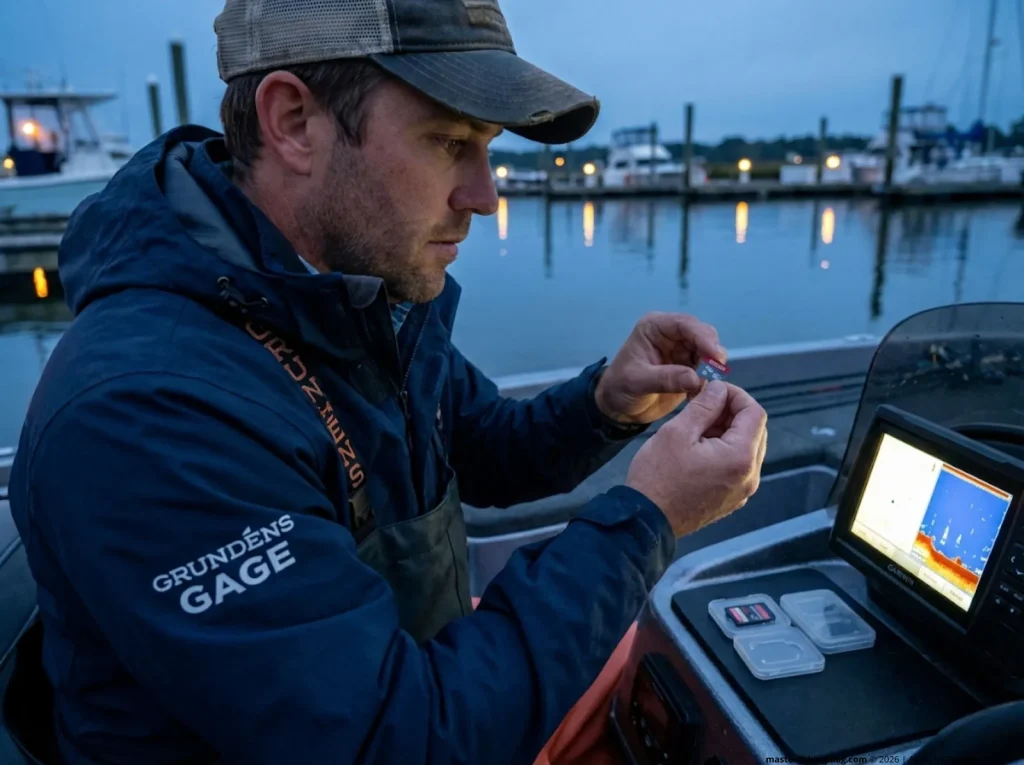
Before you start pressing buttons on your unit, get the card situation right. You need a dedicated SD card or microSD card that’s FAT32 formatted, with the write-protect tab set to unlocked, and no larger than 16-32 GB max unlocked. That size range gives you full compatibility across all three major marine electronics brands.
The biggest mistake people make? Using the pre-loaded LakeMaster or C-MAP card for backups. One wrong export step on certain firmware versions and you overwrite $150 worth of mapping data. Buy a separate $8 card, slap a strip of masking tape on it, write “NAV BACKUP” with a Sharpie, and keep it in a different slot or in your tackle bag. Problem solved forever.
Older units can also reject 64 GB cards entirely, and some anglers don’t discover this until they’re standing at the console mid-export wondering why nothing happened.
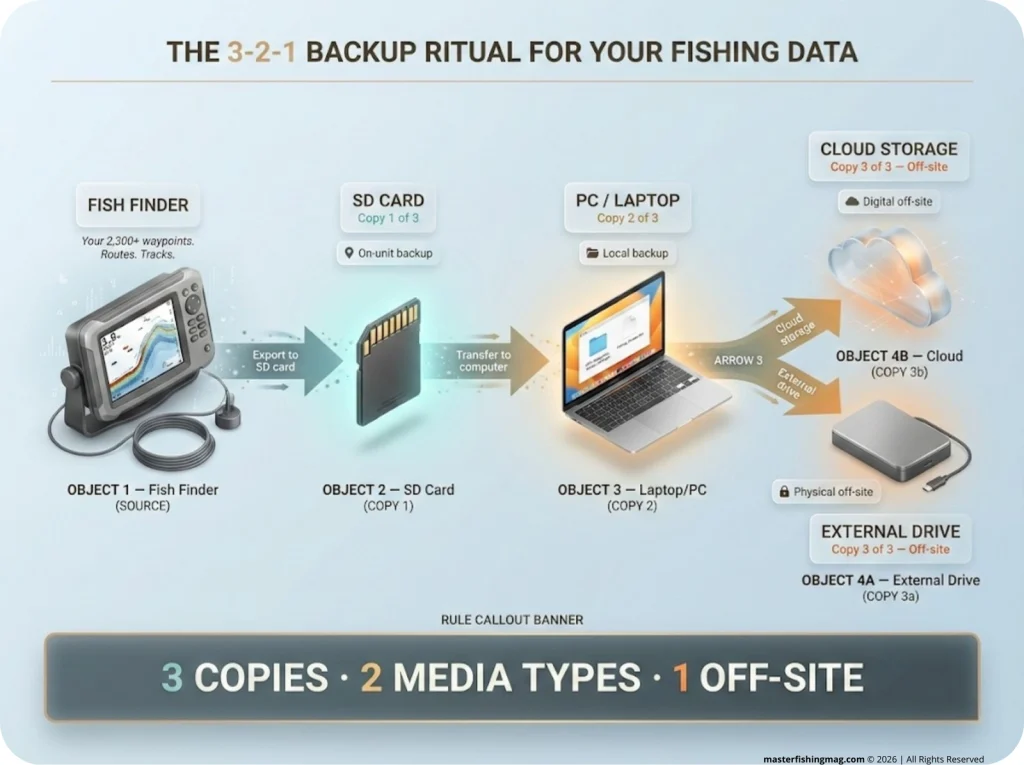
Pro tip: Keep one SD card in the boat, one copy on the PC at home, and one copy on an external drive or cloud folder. That’s the multi-backup redundancy rule borrowed straight from IT professionals — and it works just as well for fishing hotspots.
File Formats Across Brands
Not every brand speaks the same language when it comes to backup files. Humminbird HELIX units save in .HWR format (for waypoints and routes) and .HT (for tracks), stored in the /matrix/DATA.HWR folder on the card. The newer Humminbird SOLIX and Humminbird APEX models running software version v5.060+ export natively in .GPX format, which is the universal interchange standard.
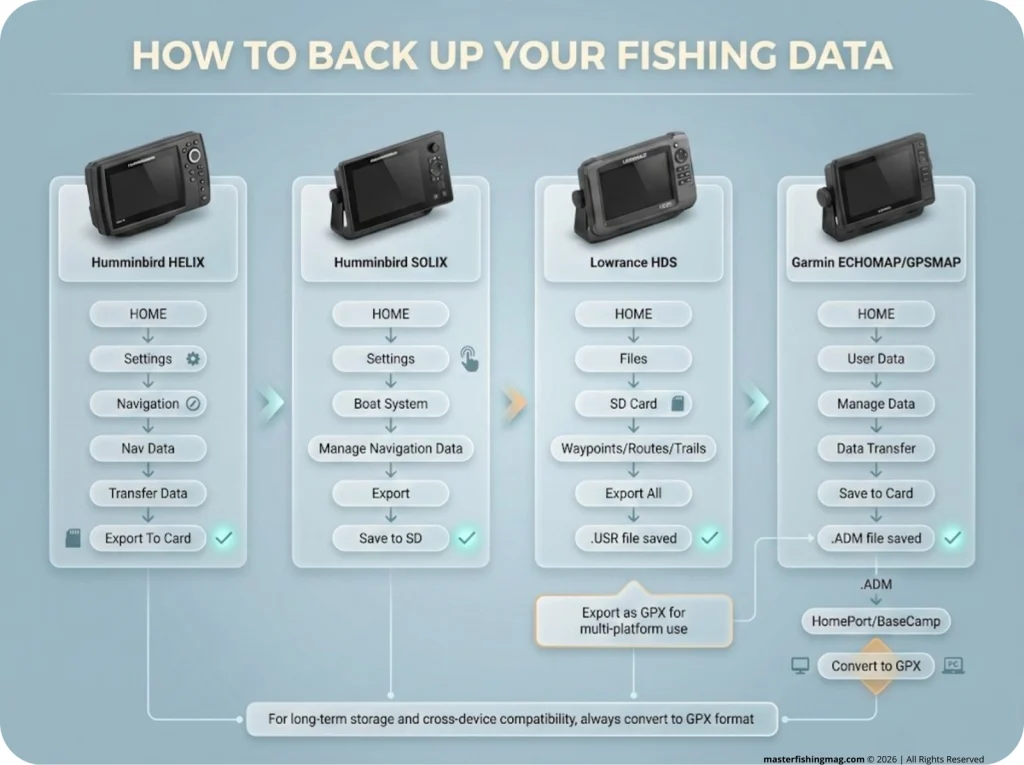
Garmin ECHOMAP and Garmin GPSMAP units — including the older Garmin GPSMAP 232 and 238 series — create .ADM format files when you hit “Save to Card.” If you need a GPX version for cross-brand use, run the ADM through Garmin HomePort software or BaseCamp on your PC. Lowrance HDS, Lowrance Elite FS, and Lowrance HOOK units typically save .USR files, though newer firmware versions on some models support GPX export directly.
The bottom line: always keep a .GPX copy of everything. It’s the one format that works across brands, opens in free tools like GPS Visualizer, and ensures your data survives no matter what unit you move to next. If you need to convert between Humminbird’s proprietary formats and GPX, the free HumminbirdPC desktop software handles it.
Brand-by-Brand Backup Walkthrough
Humminbird HELIX (v5.820+)
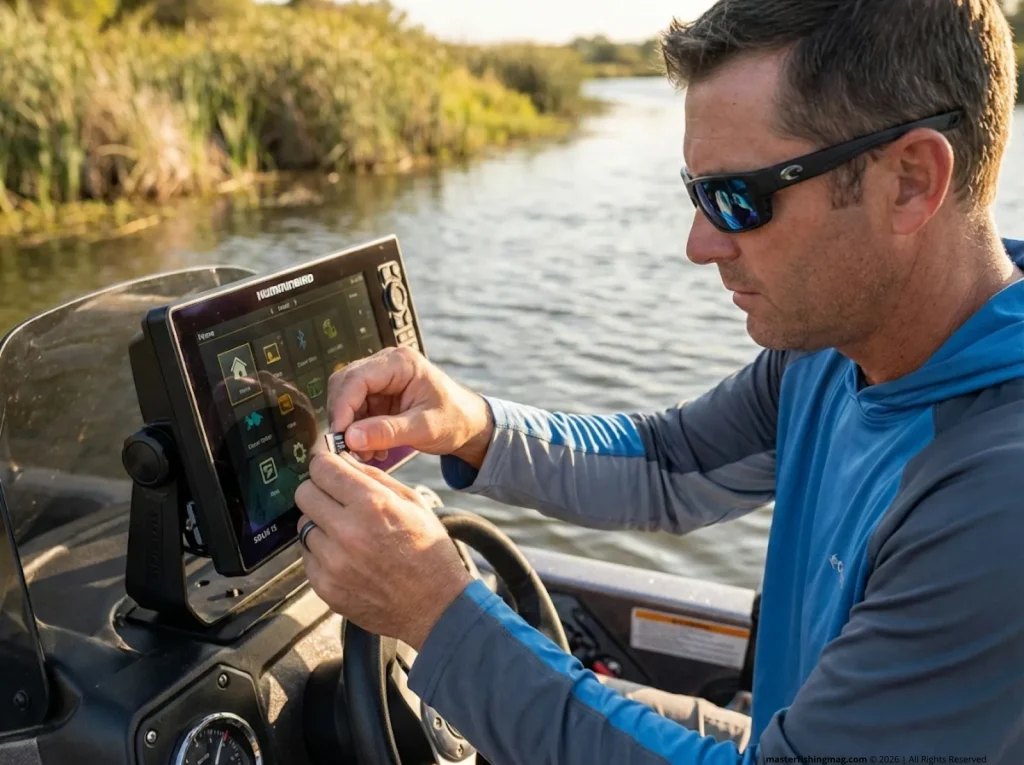
Insert an unlocked SD card. Hit MENU twice to reach the main menu. Navigate to the Nav tab, then select Waypoints, Routes, Tracks. Go to Options, choose Select All and… Export. Wait for the confirmation screen, then physically remove the card right away.
If “Select All” is grayed out, check two things: your card’s write-protect tab and its format. A locked or NTFS-formatted card will silently block the export. Also check Settings → About for your software version — earlier firmware has a slightly different menu path, and hitting the wrong sequence means nothing exports at all.
Humminbird SOLIX / APEX / XPLORE (G3 v5.060+)
On these newer G3 units, go to Home → My Data → Export All To…, name your file something meaningful, and hit Save. The export creates both GPX and native format files on the card. Done.
A note on the One-Boat Network: yes, the Bluetooth phone sync works, and yes, it can push data to your phone via the FishSmart App. But it is not a reliable backup substitute. If your phone loses the app data, if the sync fails silently, or if your Johnson Outdoors account lapses, those marks are gone. Physical SD card backup is the only method worth trusting for your full waypoint library.
If you’re upgrading from a HELIX to a SOLIX, you’ll need HumminbirdPC to convert your .HWR files to .GPX before importing them to the new unit. Once you’re deep into getting the most from your side imaging setup, you’ll be grateful you didn’t lose a single mark in the transition.
Lowrance HDS / Elite FS / HOOK
On Lowrance units, go to PAGES → Files → Waypoints, Routes & Trails → Save to Card or Export User Data. Some models use a microSD slot instead of full SD — check your specific unit before buying the wrong card.
The Lowrance App offers cloud/app integration on newer HDS models, but the same rule applies as with Humminbird’s network features: it’s a convenience tool, not a backup strategy. Physical export to a card you can hold in your hand and verify on your PC beats any app sync for reliability.
Garmin ECHOMAP / GPSMAP
Navigate to User Data → Manage Data → Data Transfer → Save to Card. Garmin creates an .ADM file on the card. For cross-device transfer compatibility, run that file through Garmin HomePort or BaseCamp on your PC to convert it to GPX.
One important spec: older Garmin GPSMAP 232/238 units need SD cards between 2 and 16 GB. Anything bigger, and the unit may not recognize the card at all. ActiveCaptain offers some cloud sync, but GPX export to SD remains the gold standard for complete protection of your fishing spots.
Mistakes That Corrupt or Destroy Your Backup
Using the Map Card Instead of a Blank Card
This is the single most expensive backup mistake anglers make. Pre-loaded LakeMaster or C-MAP cards can get overwritten during export on certain firmware versions. Replacing a $150+ mapping card because you skipped buying a dedicated $8 microSD card is a lesson nobody needs to learn twice. Label your cards. Keep them separate. Done.
Skipping the Post-Export Verification
An export that looks successful on the unit screen can still fail silently. The file might show up at 0 KB, meaning nothing actually transferred. The card might have had a bad sector. The format might not have stuck.
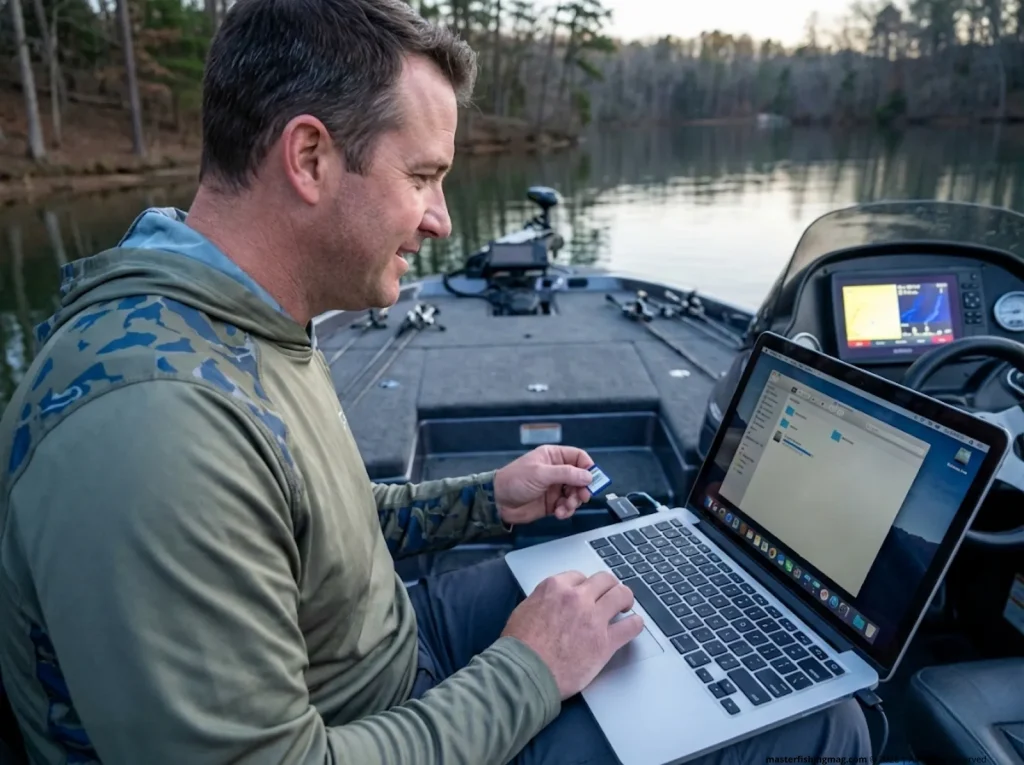
After every export, pull the card, insert it into a PC card reader, and verify the file exists with a reasonable file size. Then open the .GPX in a free viewer — GPS Visualizer or Google Earth both work — and confirm your marks actually appear on the map. This takes sixty seconds and saves you from discovering the problem months later when you actually need the backup.
Trusting Cloud/App Sync as Your Only Copy
One-Boat Network, ActiveCaptain, and the Lowrance App all offer some version of cloud or phone sync. None of them should be your only backup. Apps get discontinued. Cloud services change terms. Account access can lapse. One angler on a bass fishing forum put it bluntly: “Assumed cloud sync was enough — unit died, all gone.”
A physical SD card plus off-device storage on your PC survives account lockouts, server shutdowns, and app discontinuations. If your unit is connected to your onboard electronics network via NMEA 2000, that still doesn’t mean your data is backed up anywhere but the unit itself.
Pro tip: After every export, do a quick “card → PC → verify” loop before you leave the boat ramp. If anything went wrong, you can re-export on the spot instead of discovering it six months from now.
Building a Personal Fishing Database That Outlasts Any Device

The Naming Convention That Saves You From Chaos
Once you’ve exported a few dozen backup files over a couple of years, you’ll hit a wall: which file is which? The solution is dead simple. Name every file using lake/date versioning: LakeName_YYYY-MM-DD.gpx. Fork_2026-02-15. Texoma_2025-11-08. If you want to get finer, add season or species: Texoma_Fall_Smallmouth_2025.
On your PC, create a folder structure organized by Year → Lake → Season. This sounds obsessive until you’re standing at the console of a brand-new unit three years from now, trying to import the right file out of forty options. Without a naming system, you’ll be guessing. With one, you’ll have it loaded in under a minute.
From Raw Marks to Searchable Intelligence
Here’s where you leave every competitor article behind. Most guides stop at “export waypoints to card.” That’s step one. Step two is where your data becomes a genuine personal fishing database.
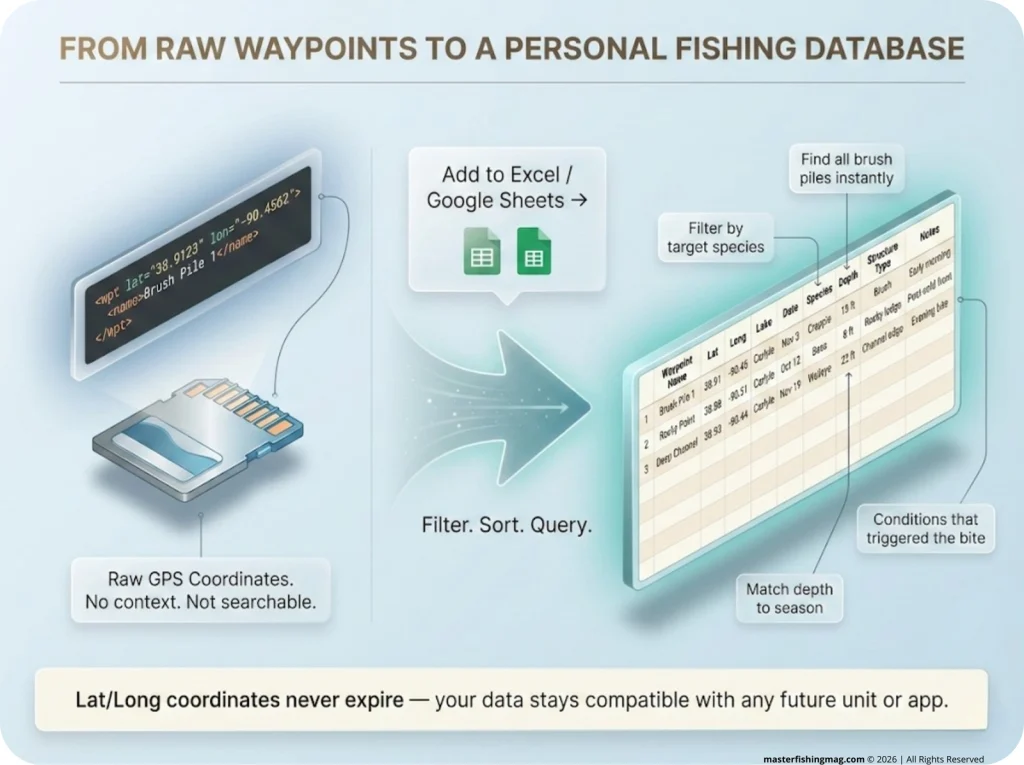
Export your GPX file, open it in Excel or Google Sheets, and add columns for species, date, conditions, depth, and structure type. What was a pile of raw GPS navigation data becomes a searchable fishing log cross-referenced with your catch history. Want to know every brush pile where you caught crappie in November at 15 feet? One filter and you’ve got it.
The spreadsheet copy for compatibility approach also future-proofs your data completely. Even if every brand changes their proprietary file format tomorrow, latitude and longitude coordinates never expire. They’ll import into whatever unit or app exists twenty years from now. As NOAA’s own research on GPS data collection in recreational fishing shows, systematic position logging is foundational to understanding fish behavior over time.
If you’re already keeping catch records, tying your waypoints into a broader system of maintaining a fishing logbook that actually gets used multiplies the value of both datasets.
The Post-Trip 3-2-1 Backup Ritual
After every significant trip, run this periodic backup sequence: export to SD card on the unit, copy the card to your PC, then sync that PC folder to an external drive or cloud storage. Three copies, two media types, one copy off-site. It’s the same maintenance calendar approach enterprise IT has used for decades, and it works just as well for fishing data.
Once a quarter, test-restore a backup to a spare unit or load it in GPS Visualizer just to verify the files aren’t corrupted. One angler on a bass forum described selling his old HELIX with 2,300 marks on it. Quote: “Buyer got the unit. I kept the fishing life.” That only works if your backup ritual is real.
When You Need to Move Waypoints Across Brands or Units
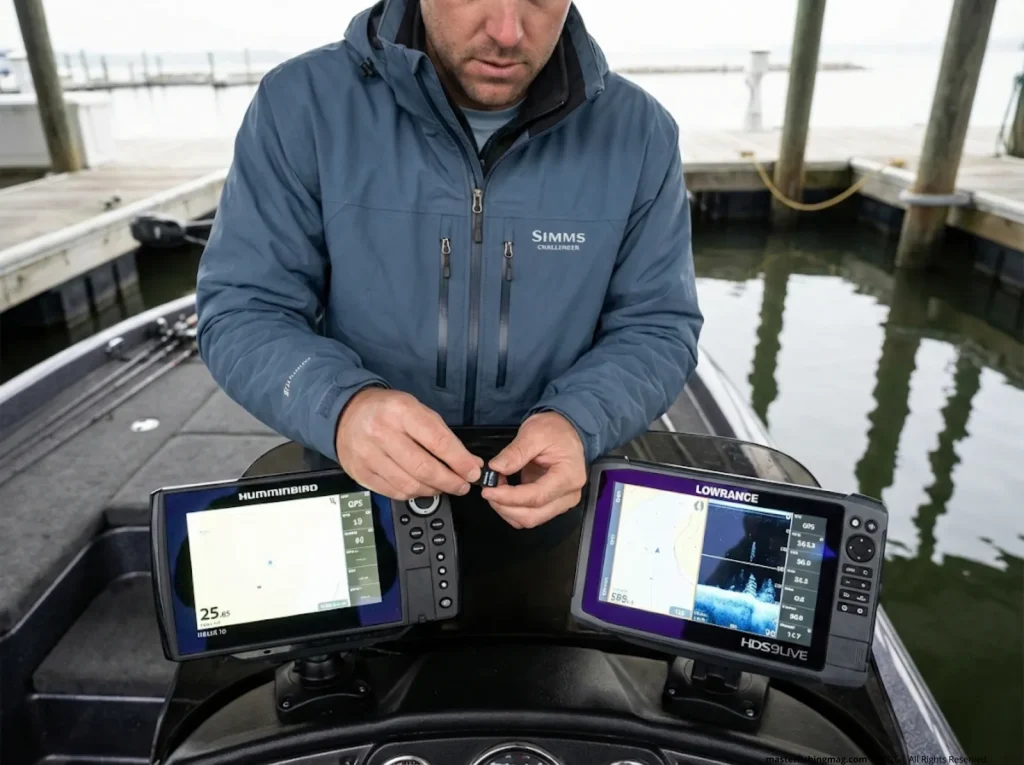
HELIX to SOLIX (or Vice Versa)
Export from your source unit to an SD card. Install HumminbirdPC on your computer. Import the .HWR file, convert it to .GPX, then re-export as an .HWR compatible with the target unit. Import to the new unit via SD. The Humminbird SOLIX G3 running v5.060+ handles GPX natively, so the conversion step is only needed when you’re going to a HELIX, not from one.
Switching Brands Entirely
When you’re making a cross-device transfer — say, moving from a Humminbird to a Lowrance or Garmin — the process follows the same core logic. Export from your old unit in its native format. Convert to .GPX using the brand’s software or the free GPS Visualizer web tool. Import the GPX into your new unit via its SD import process.
One thing to watch: verify the waypoint count matches after import. Some conversions silently drop routes or tracks while keeping waypoints intact. Keep the original native-format file as insurance until you’ve confirmed everything transferred correctly.
Once the transfer is done, keeping all those marks organized without clutter is its own challenge — and our guide to organizing a cluttered GPS waypoint library covers that side of the equation.
Conclusion
Your fish finder’s internal memory is the weakest link in your fishing knowledge chain. One dead unit, one botched update, and years of hard-earned spots — fishing hotspots you spent real time and fuel discovering — vanish in a second. The fix is a ten-minute SD card export that most anglers keep putting off until the day it’s too late.
Go beyond the basic backup waypoints habit. Name your files. Enrich them in a spreadsheet. Store three copies in two different places. That’s how you turn fragile data into a personal fishing database that outlasts every unit you’ll ever own.
Pick one lake — the one you fish the most. Tonight, export every waypoint from that lake to a fresh SD card. Copy it to your PC. Name the file. That single action protects more fishing knowledge than most anglers accumulate in a lifetime.
FAQ
How often should I backup fish finder waypoints?
After every significant trip, or at minimum once a month during fishing season. Always backup waypoints before firmware updates, factory resets, or selling your unit — those are the three events most likely to wipe your data without warning.
What format do fish finder waypoints use?
It depends on the brand. Humminbird uses .HWR or .HT (HELIX) or .GPX format (SOLIX or APEX). Garmin uses .ADM format. Lowrance uses .USR. GPX is the universal interchange format supported by all brands via conversion, and it’s the one you should always keep a copy of.
Can I transfer waypoints from Humminbird to Lowrance?
Yes. Export waypoints from your Humminbird to an SD card, convert to .GPX using HumminbirdPC or GPS Visualizer, then import the .GPX file to your Lowrance unit via its microSD card slot. Verify the count matches after import.
What size SD card should I use for fish finder backups?
Stick with 16-32 GB max, FAT32 formatted, with the write-protect tab unlocked. Older units reject cards larger than 32 GB. Never use your pre-loaded map card — buy a dedicated backup card and keep it labeled as your secure copy.
How do I know if my backup actually worked?
Remove the SD card, insert it into a PC card reader, and verify the file exists with a reasonable file size (not 0 KB). Open the .GPX in a free viewer like GPS Visualizer or Google Earth to confirm your marks transferred correctly. This sixty-second check is the only way to know for sure.
Risk Disclaimer: Fishing, boating, and all related outdoor activities involve inherent risks that
can lead to injury. The information provided on Master Fishing Mag is for educational and informational purposes
only. While we strive for accuracy, the information, techniques, and advice on gear and safety are not a substitute
for your own best judgment, local knowledge, and adherence to official regulations. Fishing regulations, including
seasons, size limits, and species restrictions, change frequently and vary by location. Always consult the latest
official regulations from your local fish and wildlife agency before heading out. Proper handling of hooks, knives,
and other sharp equipment is essential for safety. Furthermore, be aware of local fish consumption advisories. By
using this website, you agree that you are solely responsible for your own safety and for complying with all
applicable laws. Any reliance you place on our content is strictly at your own risk. Master Fishing Mag and its
authors will not be held liable for any injury, damage, or loss sustained in connection with the use of the
information herein.
Affiliate Disclosure: We are a participant in the Amazon Services LLC Associates Program, an
affiliate advertising program designed to provide a means for us to earn advertising fees by advertising and linking
to Amazon.com. As an Amazon Associate, we earn from qualifying purchases. We also participate in other affiliate
programs and may receive a commission on products purchased through our links, at no extra cost to you. Additional
terms are found in the terms of service.